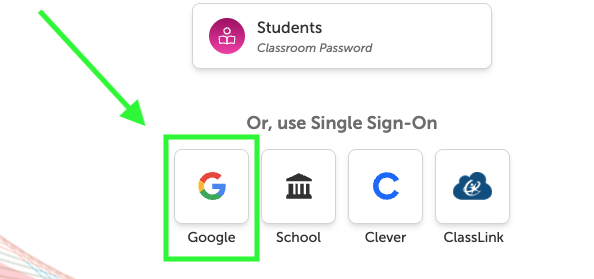
How Students Can Log In
How Students Can Log In
When students and families go to the magazine website, they’ll need to log in to see the student view. It takes only a few seconds, following these steps:
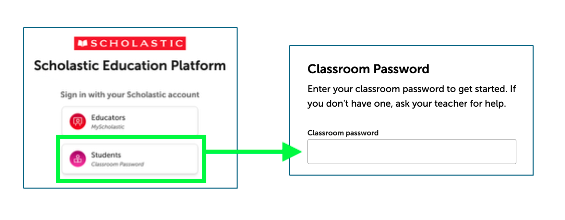
That’s it! Once they sign in, they're taken to the website's student view. And if your school uses Google Classroom, the process is even simpler. Once you sync your account with Scholastic, all your students need to do is click the Google button. They will not need a classroom password.